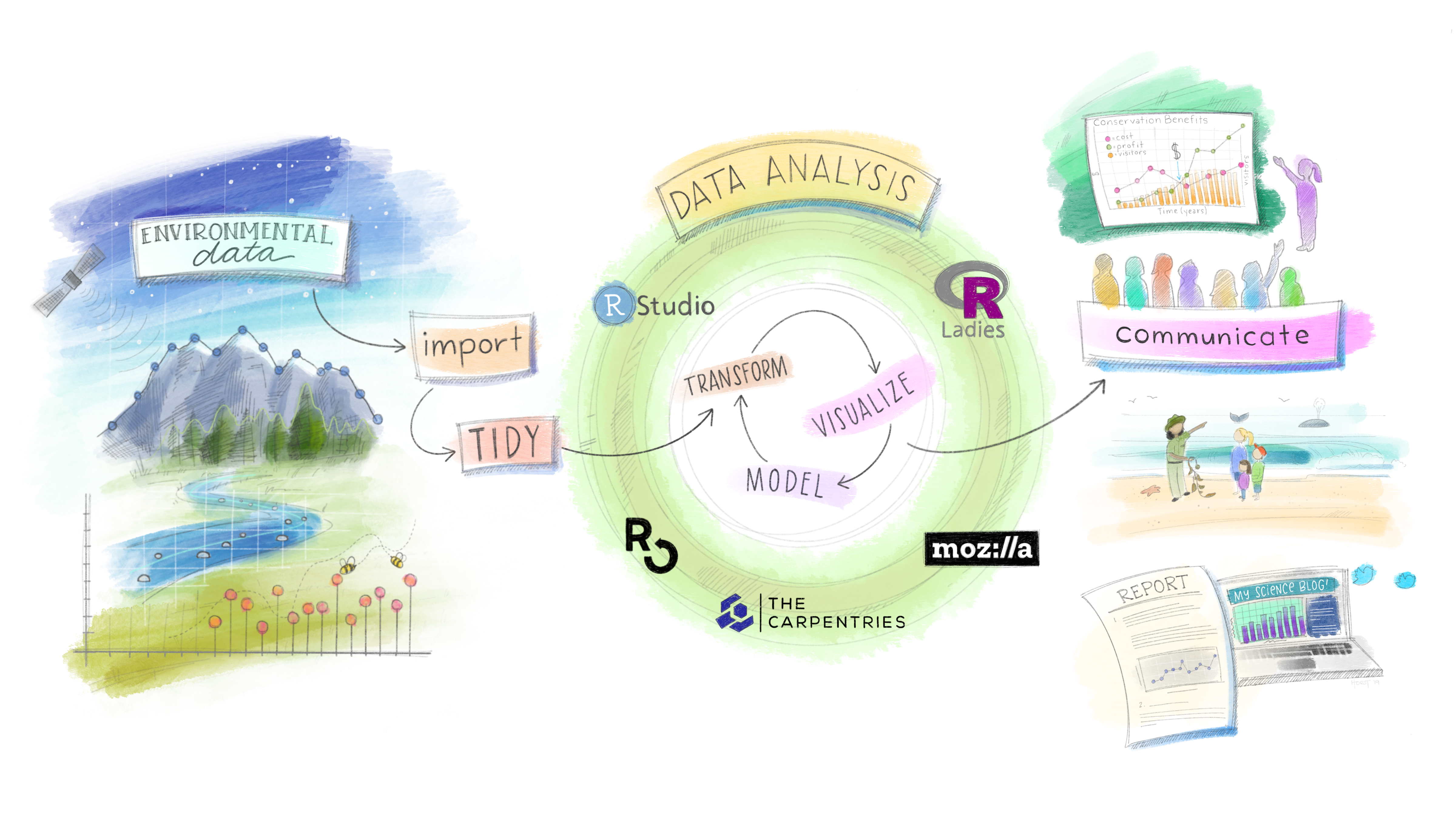
Week 1
Welcome + Your Digital Environment
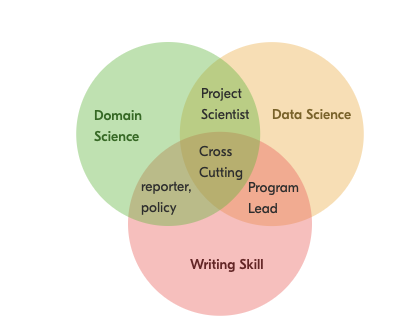
The Environmental Trifecta
Most environmental scientists have one or two of these. Few have all three.
Combining writing, data analysis, and domain expertise creates a rare and flexible professional — one who can move between science, policy, and practice.
AI can generate code. It cannot ask the right scientific question, evaluate whether the answer makes physical sense, or stand in front of a stakeholder and defend it. That combination is what we’re building.
“If not you, then who?”
Instructor: Mike Johnson

- Chief Data Scientist, Lynker
- PhD in Geography, UC Santa Barbara
- 10+ years in hydrology and ecosystem science
- Active work with NOAA, USACE, and federal water programs
The work we do in this course is in many ways the same work being done at the federal/state level right now. You’re learning a living skillset.
Course site:
https://mikejohnson51.github.io/csu-ess-523c/
Working Together & AI Policy
Tip
Collaboration — encouraged
Discuss problems, share approaches, and help each other debug — you learn more working with peers.
Important
Individual work — required
Your code, writing, and results must be submitted individually.
Note
AI tools (ChatGPT, Claude, Copilot)
- Acceptable: exploring concepts, debugging syntax, understanding errors, and short illustrative examples — always verify and understand outputs.
- Not acceptable: producing final analyses, lab write-ups, figures, or any submission you present as solely your own work.
- Disclosure: If AI contributed substantively, include a brief note describing the tool, model, and a short prompt summary.

Compute Needs
- Your own computer running a full OS — Windows, macOS, or Linux
- Chromebooks are not supported
- If this is a barrier, reach out immediately and we’ll find a solution

What Is Quantitative Reasoning?
Working Definition: Thinking about data from our world to better understand and make choices about the past, present, and future.
- Many people can work with data (data scientists)
- Many people have domain knowledge (hydrologists)
- Few can do both carefully — that’s what makes you valuable
The rest of today is about building the foundation for that focusing on how computers store, find, and interpret information — and why that matters for doing science well.
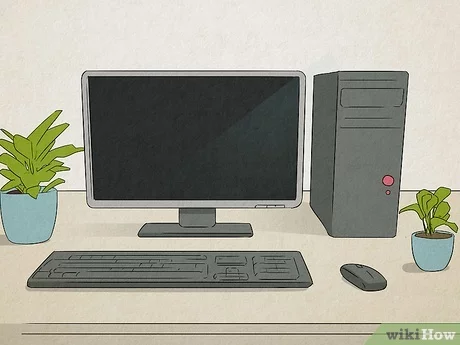
The Computer
Three subsystems you need to understand:
- Disk: Persistent storage — files live here when the power is off. Reading from disk is slow.
- Memory (RAM): Ephemeral workspace — data lives here while R runs. Fast, but finite and temporary.
- CPU: Executes instructions — does the computation.
Why this matters for you:
When you load a 4 GB raster into R, it moves from disk into RAM. If your RAM is full, R crashes or slows to a crawl. Knowing where the bottleneck is (I/O? memory? compute?) is how you diagnose and fix slow analyses.
The Compute Cycle
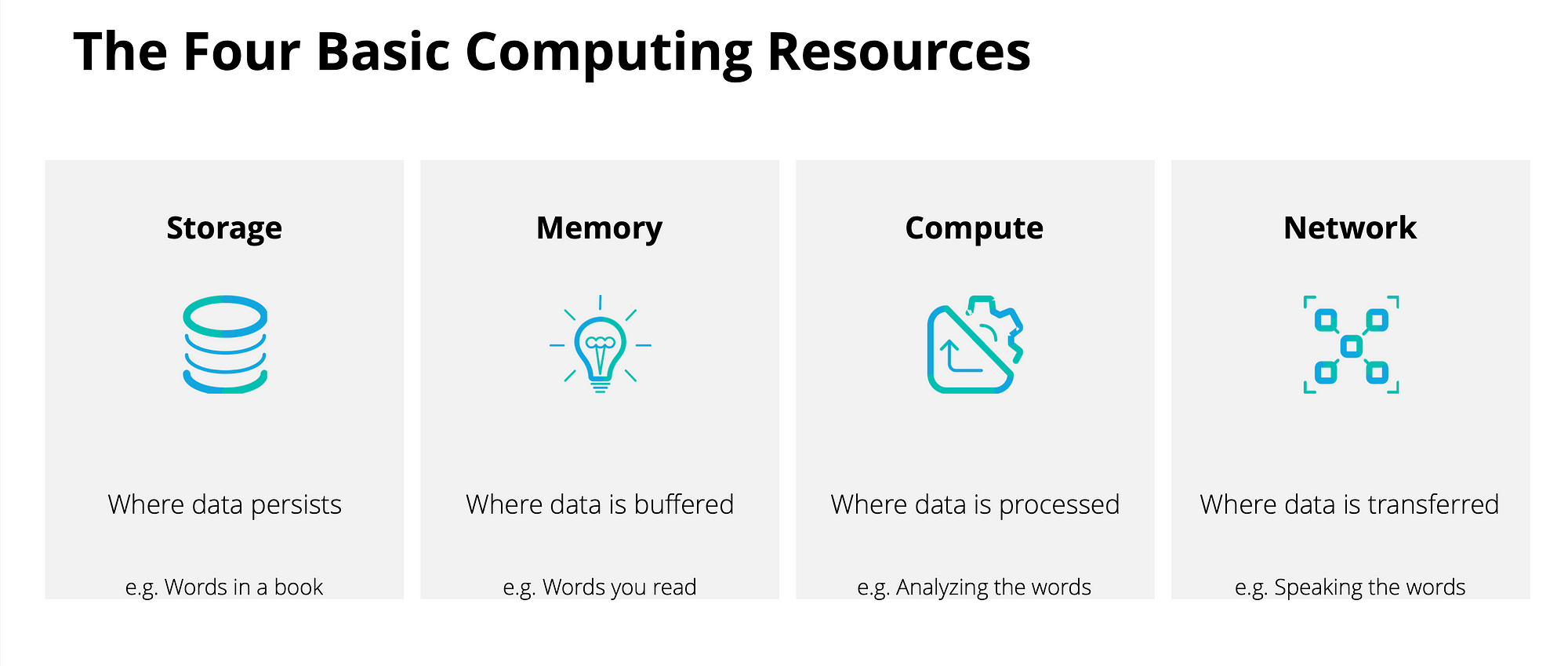
Data flows: disk → memory → CPU → memory → disk
Every read_csv(), st_read(), and rast() call you make starts this cycle. Every write_csv() and writeRaster() ends it.
Bits and Bytes
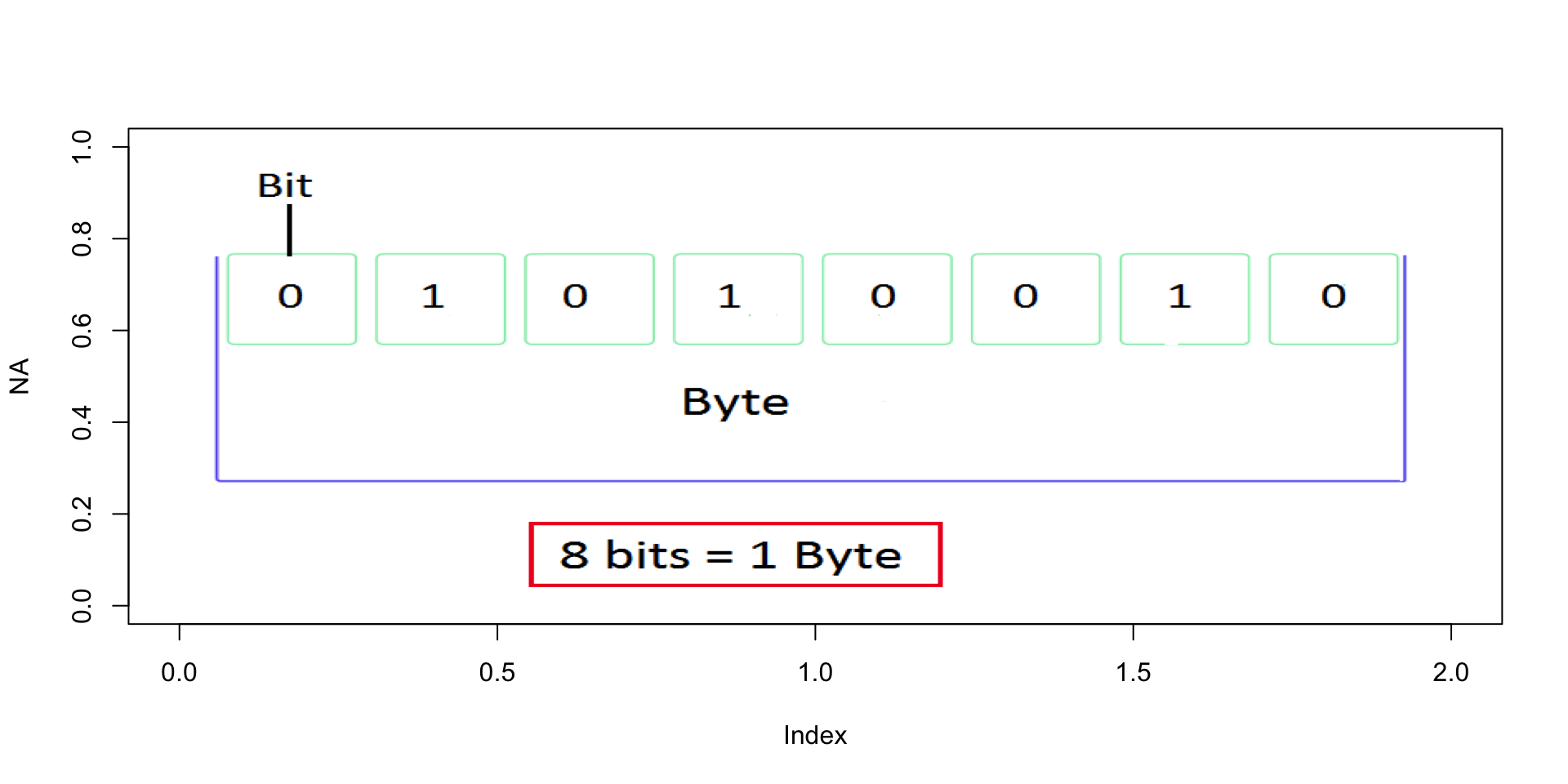
- A bit is one logical state:
0or1 - A byte is 8 bits
- Everything on a computer — text, images, spatial data, model outputs — is bytes
Why it matters in practice:
| Dataset | Size estimate |
|---|---|
| USGS daily flow record, 1 gauge, 50 years | ~150 KB |
| NHDPlus HR flowlines, CONUS | ~12 GB |
| NWM retrospective, 1 variable, 1 year | ~200 GB |
| 3DEP 1m DEM, single HUC4 | ~8–40 GB |
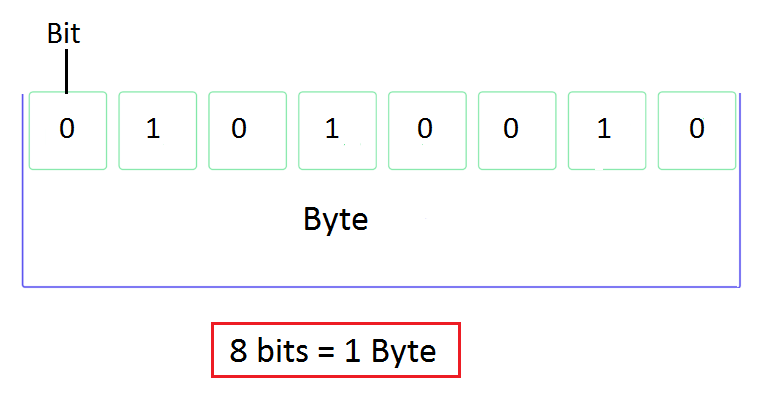
These numbers stop being surprising once you know the unit chain: KB → MB → GB → TB (each ×1,024).
What Is a File?
Files save bytes on disk in a structured, meaningful way
Every file has three key properties:
- A name — how you and the computer identify it
- A path — its address in the file system hierarchy
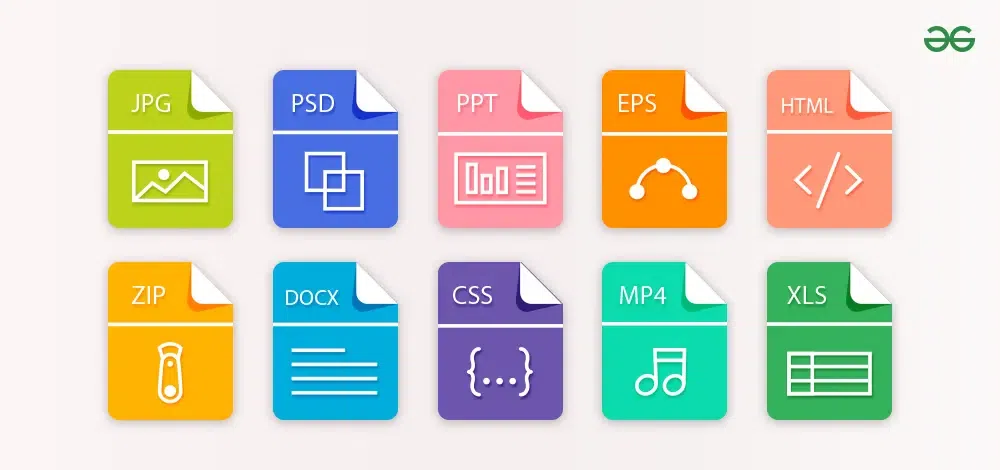
- An extension — tells programs how to interpret the bytes
Hard drives don’t understand files — they store bytes. The file system is the organizational layer that makes bytes into named, navigable objects.
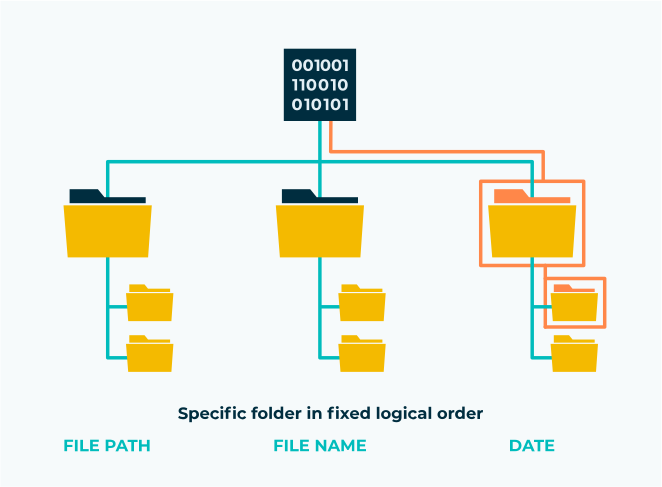
File Systems & Directories
How operating systems differ:
- Windows : drives (
C:\), backslash separators - macOS / Linux : forward slashes, everything under root
/ - Cloud (S3, GCS): looks like a filesystem, but is actually flat key-value storage
Key vocabulary:
| Term | Meaning |
|---|---|
| Root | Top-level directory — contains everything |
| Working directory | Where your session is (getwd()) |
| Parent directory | One level up (..) |
| Subdirectory | A folder inside the working directory |
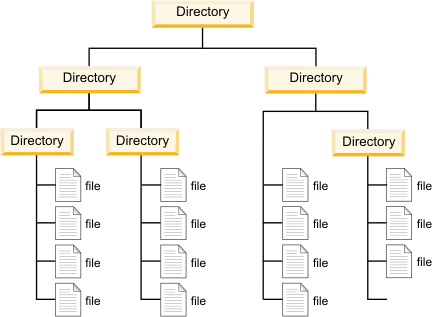
System of Directions
File paths tell us the location of a file within the file system
Directories are stored as hierarchies, again with root (home) directory being the one holding everything on a system
The folder you are in, is called your working directory. (think
pwd)The folder above the working directory is the parent directory
All folders within the working directory are sub folders or child folder
Context
All files store bits.
Extensions can be considered a type of metadata that provides information about the way data might be stored
There are 1000’s of different formats for data ranging from common to custom
Each format defines how the sequence of bits and bytes are laid out
Indicate the characteristics of the file, its intended use, and the default applications that can open/use the file.
If you double click a
.docxfile it opens in Word which interprets the meaning of the bytesIf you double click an
.Rfile it opens with RStudio, and R interprets the meaning of the bytes
How images are rendered:
URL Structure

| Part | Example | Analogy |
|---|---|---|
| Protocol | https://, s3:// |
How to travel |
| Domain | waterservices.usgs.gov |
The server (building) |
| Path | /nwis/iv/ |
Directory (floor/room) |
| File | flow_2024.csv |
The file |
| Parameters | ?sites=06752260¶meterCd=00060 |
Filters on the request |
Putting It Together
Every analysis: question → data (files + paths + formats) → compute → output (files + paths + formats)
The concepts from today — bytes, files, names, paths, extensions, URLs — are the substrate every analysis runs on. They feel like setup. They are actually the foundation.
R vs. RStudio
- These are two separate things. Confusing them is the most common source of early frustration.
R — the language and engine - Does the actual computation - Runs without RStudio - Must be installed first
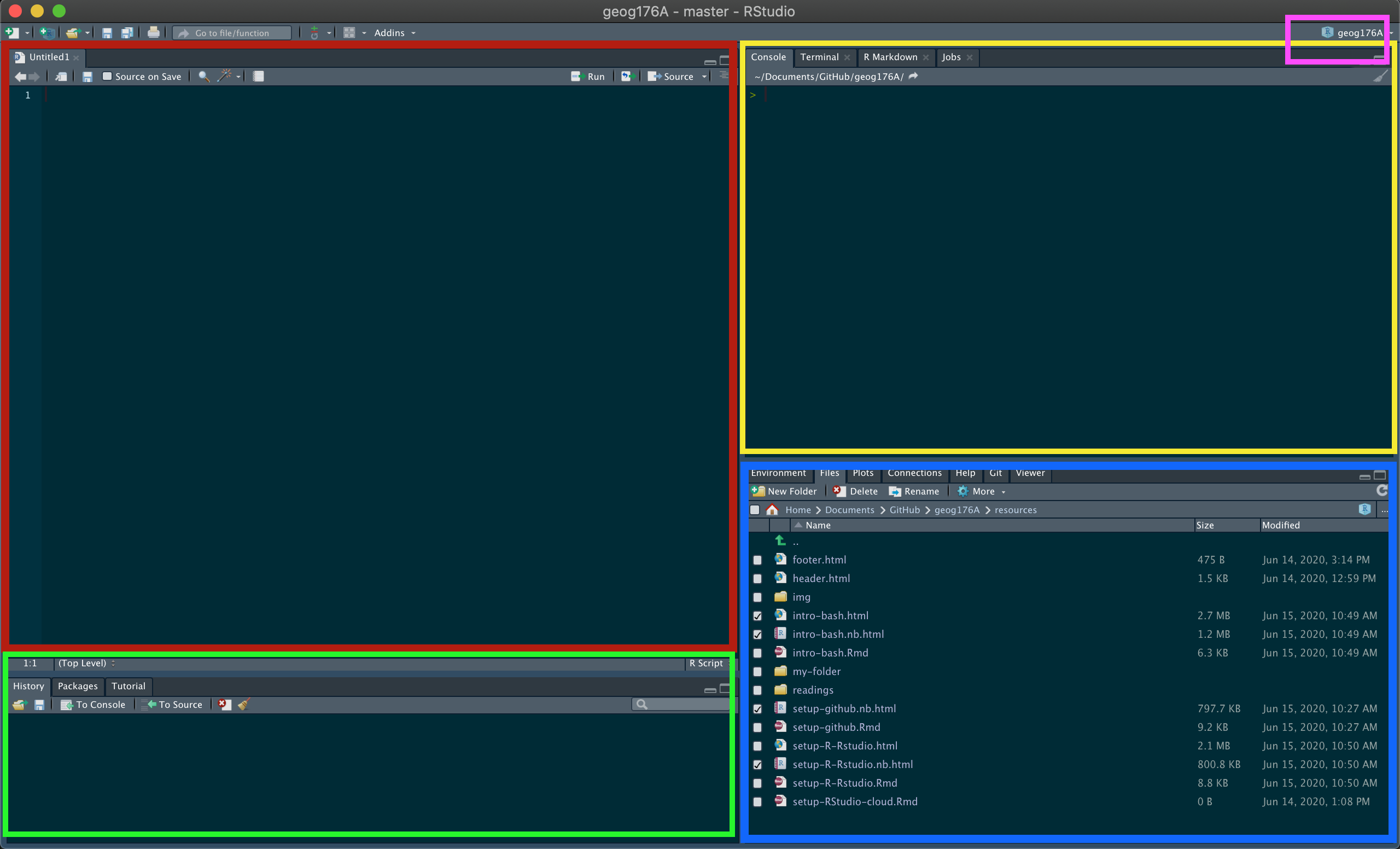
RStudio — the IDE (development environment) - The interface you’ll look at all day - Organizes files, environment, plots, packages, terminal - Makes R usable — but it is not R
Analogy: R is the engine. RStudio is the dashboard and steering wheel. You need both, but they are not the same thing.
Git + GitHub
Git runs on your machine — the version control engine
GitHub hosts your repositories in the cloud — collaboration, backup, and portfolio in one place
Together:
- Complete, auditable history of every project
- Collaborate without overwriting each other
- Revert any file to any previous state
- Public portfolio of your work
- The standard for open, reproducible science
All labs in this course are submitted via GitHub. We set it up together in this week’s homework — by next class, this will already be part of your workflow.

Your Power Tool
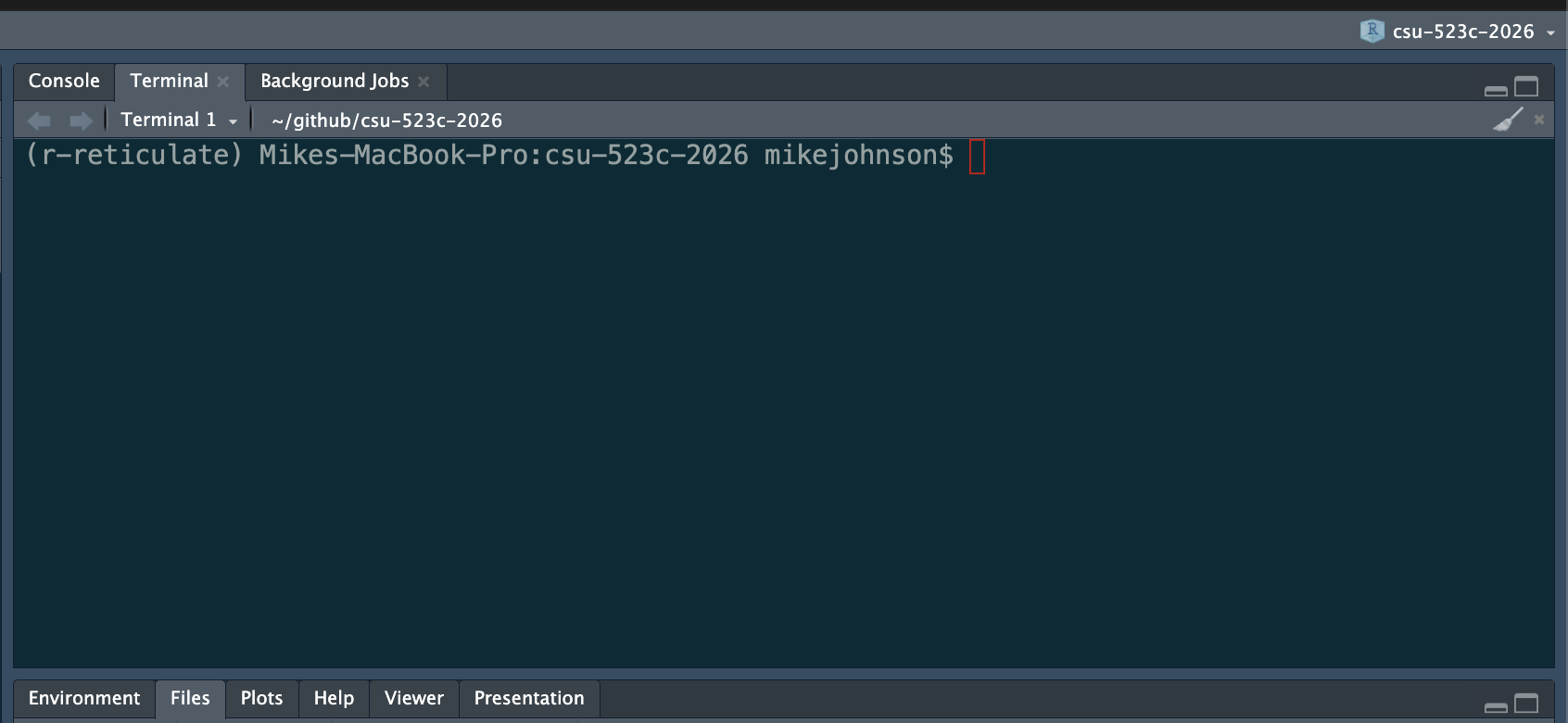
The terminal is a text interface to your file system. It feels archaic. It is indispensable.
Git, package installation, server connections, working in the cloud — all of it eventually touches the terminal. The sooner it feels normal, the better.
| Command | Does |
|---|---|
pwd |
Where am I? |
ls |
What’s here? |
cd folder |
Move into folder |
cd .. |
Move up one level |
mkdir name |
Create a directory name |
cp a b |
Copy a to b |
mv a b |
Move / rename a to b |
In RStudio: Terminal tab, next to Console — use it there until the standalone terminal feels comfortable.
Before Next Class
This week’s homework ensures your environment is ready:
Lab 00: Verify Your Environment + Meet Your Tools
Confirm your R, RStudio, and Git setup — install course packages, configure Git, connect to GitHub. Come to the next class ready to code!
Next topic: Data Manipulation crash course