Week 4-2

JSON, GeoJSON, and STAC: Cloud-Native Geospatial Discovery

Learning Objectives

By the end of this week, you will be able to:

  • Parse and validate JSON from APIs and cloud storage systems
  • Read and write GeoJSON for spatial data exchange in reproducible workflows
  • Query STAC catalogs to discover and access petabyte-scale remote sensing datasets
  • Download and organize imaging assets directly into analysis pipelines (avoiding manual downloads)
  • Apply these tools to real water resource problems (e.g., flood extent mapping, drought monitoring)

Why These Standards Matter for Water Data Science

Modern water resource analysis requires fast, reproducible access to cloud-hosted data:

  • JSON: Standard format for REST APIs (USGS, NOAA, NWIS, NASA)
  • GeoJSON: Enables spatial data to flow between databases, web services, and R
  • STAC: Discovers satellite imagery, model outputs, and time-series data without manual catalog browsing

Real scenario: Analyzing the 2016 Palo, Iowa flood requires Landsat imagery from Sept 24–29, 2016. With STAC + rstac, that’s a 3-line search query. Without it: hours of clicking through NASA/USGS websites.

JSON: The Universal Data Exchange Format

JSON (JavaScript Object Notation) is everywhere in modern data science:

  • APIs: USGS NWIS, NOAA, OpenWeather, Mapbox, Google Earth Engine
  • Cloud storage: AWS S3 metadata, Azure metadata, Google Cloud Storage
  • Databases: NoSQL (MongoDB), time-series (InfluxDB), document stores
  • Configuration: package.json, Docker Compose, Kubernetes

Key advantage: Human-readable + machine-parseable + language-agnostic.

{ "type": "FeatureCollection",
  "features": [
    { "type": "Feature",
      "geometry": {
        "type": "Point",
        "coordinates": [-91.793, 42.066]
      },
      "properties": {
        "gauge": "Palo, IA",
        "flood_date": "2016-09-26"
      }
    }
  ]
}

JSON Syntax & Data Types

Objects (key-value pairs):

{
  "gauge_id": "09380000",
  "name": "Colorado R at Lees Ferry",
  "state": "AZ",
  "mean_flow_cfs": 12500.5
}

Arrays (ordered lists):

["red", "green", "blue", "nir"]

Data types: string, number, boolean, null, object, array

Common mistakes: unquoted keys, trailing commas, mismatched quotes

Parsing JSON in R

Use jsonlite::fromJSON() to parse JSON strings or URLs:

library(jsonlite)

# Parse JSON string
response_json <- '{"gauge":"Lees Ferry","flow":12400}'
(data <- fromJSON(response_json))
#> $gauge
#> [1] "Lees Ferry"
#> 
#> $flow
#> [1] 12400

# Convert R object back to JSON
data_out <- toJSON(data, pretty = TRUE)
cat(data_out)
#> {
#>   "gauge": ["Lees Ferry"],
#>   "flow": [12400]
#> }

Example

jsonlite::fromJSON('https://api.water.usgs.gov/nldi/linked-data/nwissite/USGS-11120000/basin?f=json')
#> $type
#> [1] "FeatureCollection"
#> 
#> $features
#>      type geometry.type
#> 1 Feature       Polygon
#>                                                                                                                                                                                                                                                                                                                                                                                                                                                                                                                                                                                                                                                                                                                                                                                                                                                                                                                                                                                                                                                                                                                                                                                                                                                                                                                               geometry.coordinates
#> 1 -119.77318, -119.77417, -119.78318, -119.80453, -119.81148, -119.81970, -119.82177, -119.82532, -119.82788, -119.82953, -119.82337, -119.81773, -119.81840, -119.81423, -119.80947, -119.80618, -119.80570, -119.80319, -119.79965, -119.79976, -119.79788, -119.79740, -119.80084, -119.80152, -119.79792, -119.79771, -119.79610, -119.79558, -119.79138, -119.79504, -119.79367, -119.79491, -119.79093, -119.78582, -119.78033, -119.77481, -119.75595, -119.75273, -119.74613, -119.74481, -119.74628, -119.74062, -119.73365, -119.73075, -119.73438, -119.74040, -119.74208, -119.74850, -119.75526, -119.75368, -119.74909, -119.74522, -119.74498, -119.74733, -119.75328, -119.75293, -119.76057, -119.76967, -119.77318, 34.43021, 34.42717, 34.42023, 34.41981, 34.41806, 34.41844, 34.42047, 34.41834, 34.41867, 34.42039, 34.42651, 34.42752, 34.43160, 34.43699, 34.43870, 34.44395, 34.45008, 34.45590, 34.45731, 34.45906, 34.46023, 34.46202, 34.46432, 34.46750, 34.47877, 34.48549, 34.48743, 34.50037, 34.50359, 34.51399, 34.51615, 34.51789, 34.52038, 34.52034, 34.51724, 34.51128, 34.50409, 34.50555, 34.50490, 34.50711, 34.50807, 34.50953, 34.50682, 34.50189, 34.49278, 34.48782, 34.48332, 34.48081, 34.47381, 34.46935, 34.46462, 34.45292, 34.44701, 34.44307, 34.43972, 34.43647, 34.43599, 34.43016, 34.43021

GeoJSON: Spatial Data as JSON

GeoJSON encodes geographic features in JSON—standard for web mapping, APIs, and data interchange.

Structure: - Geometry: Points, LineStrings, Polygons (lon/lat coordinates in WGS84) - Properties: Attributes (names, values, measurements) - Feature: Single geometry + properties - FeatureCollection: Multiple features

Point: [-91.793, 42.066] (lon, lat)

Polygon: Ring of coordinates forming closed boundary

GeoJSON Geometry Types

{
  "type": "Point",
  "coordinates": [-91.793, 42.066]
}
{
  "type": "Polygon",
  "coordinates": [[
    [-91.8, 42.06], [-91.79, 42.07], [-91.78, 42.06], [-91.8, 42.06]
  ]]
}

Key rule: Coordinates are [longitude, latitude] (not lat, lon!)

GeoJSON Feature Example

A single flood extent:

{
  "type": "Feature",
  "geometry": {
    "type": "Polygon",
    "coordinates": [[
      [-91.8, 42.06], [-91.79, 42.07], [-91.78, 42.06], [-91.8, 42.06]
    ]]
  },
  "properties": {
    "name": "Flooded Area in Palo",
    "date": "2016-09-26",
    "flood_depth_feet": 18.5
  }
}

Live Read

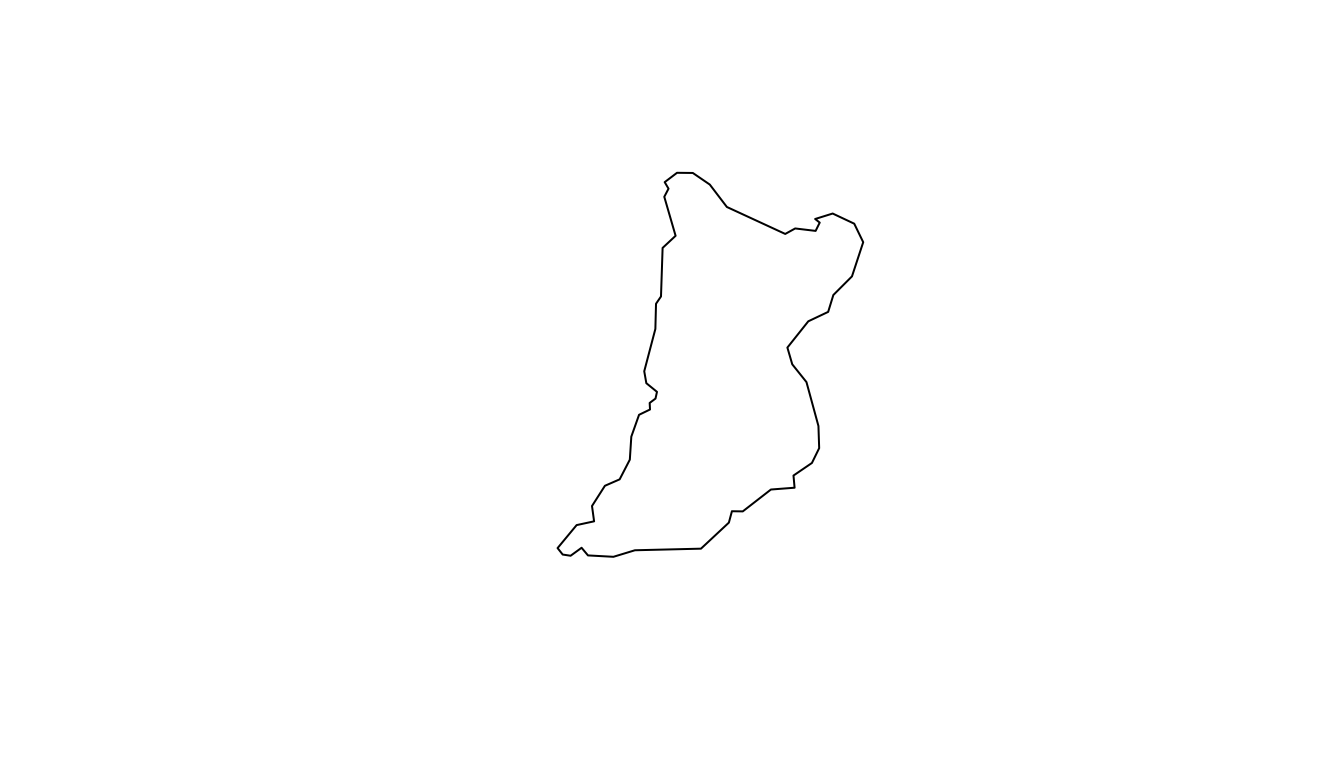
basin <- sf::read_sf('https://api.water.usgs.gov/nldi/linked-data/nwissite/USGS-11120000/basin') 

basin
#> Simple feature collection with 1 feature and 0 fields
#> Geometry type: POLYGON
#> Dimension:     XY
#> Bounding box:  xmin: -119.8295 ymin: 34.41806 xmax: -119.7307 ymax: 34.52038
#> Geodetic CRS:  WGS 84
#> # A tibble: 1 × 1
#>                                                                         geometry
#>                                                                    <POLYGON [°]>
#> 1 ((-119.7732 34.43021, -119.7742 34.42717, -119.7832 34.42023, -119.8045 34.41…

plot(basin)
STAC: Discovering Petabyte-Scale Remote Sensing Data

STAC (SpatioTemporal Asset Catalog) is a standard for describing & discovering imagery:

  • Problem: Finding cloud-free Landsat imagery for your study area on a specific date used to require:
    • Visiting NASA EarthExplorer or USGS
    • Manually filtering by date, cloud cover, location
    • Clicking download buttons
    • Waiting for large files
  • STAC solution: Machine-readable metadata + standard API = programmatic discovery & download

STAC Concepts

  • Catalog: Describes a collection of data (e.g., Landsat Collection 2 Level-2)
  • Collection: Metadata + spatial/temporal extent for a dataset
  • Item: Single asset (one satellite scene), with its own metadata (cloud cover, datetime, bands)
  • Asset: Specific file or data product (red band, NIR band, thumbnail, cloud mask)
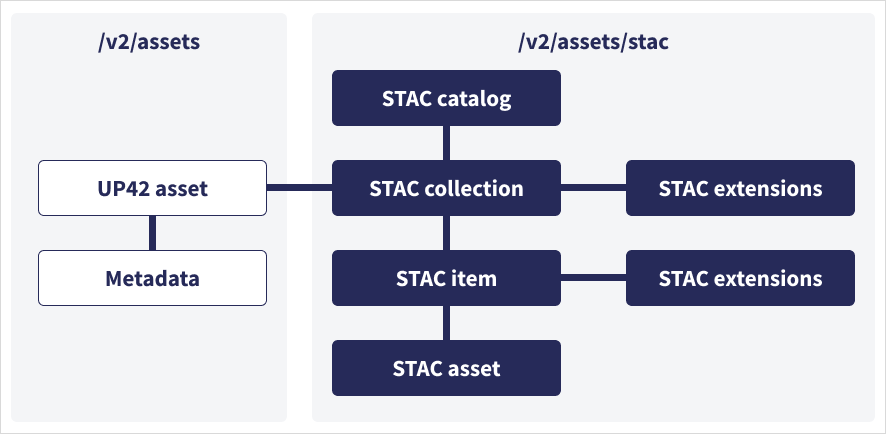
STAC hierarchy: Catalog → Collection → Item → Asset

Key insight: This nested structure lets you query at any level (find catalogs, browse collections, search for items, download specific assets).

STAC Item Anatomy (Landsat Example)

{
  "type": "Feature",
  "id": "LC08_L2SP_025031_20160926_02_T1",
  "stac_version": "1.0.0",
  "geometry": { "type": "Polygon", "coordinates": [...] },
  "properties": {
    "datetime": "2016-09-26T16:47:00Z",
    "platform": "landsat-8",
    "instruments": ["OLI", "TIRS"],
    "eo:cloud_cover": 2.1
  },
  "assets": {
    "red": { "href": "s3://...LC08_red.TIF" },
    "nir": { "href": "s3://...LC08_nir.TIF" }
  }
}

Key insight: Assets are URLs pointing to cloud storage. A STAC item is essentially metadata + pointers to files.
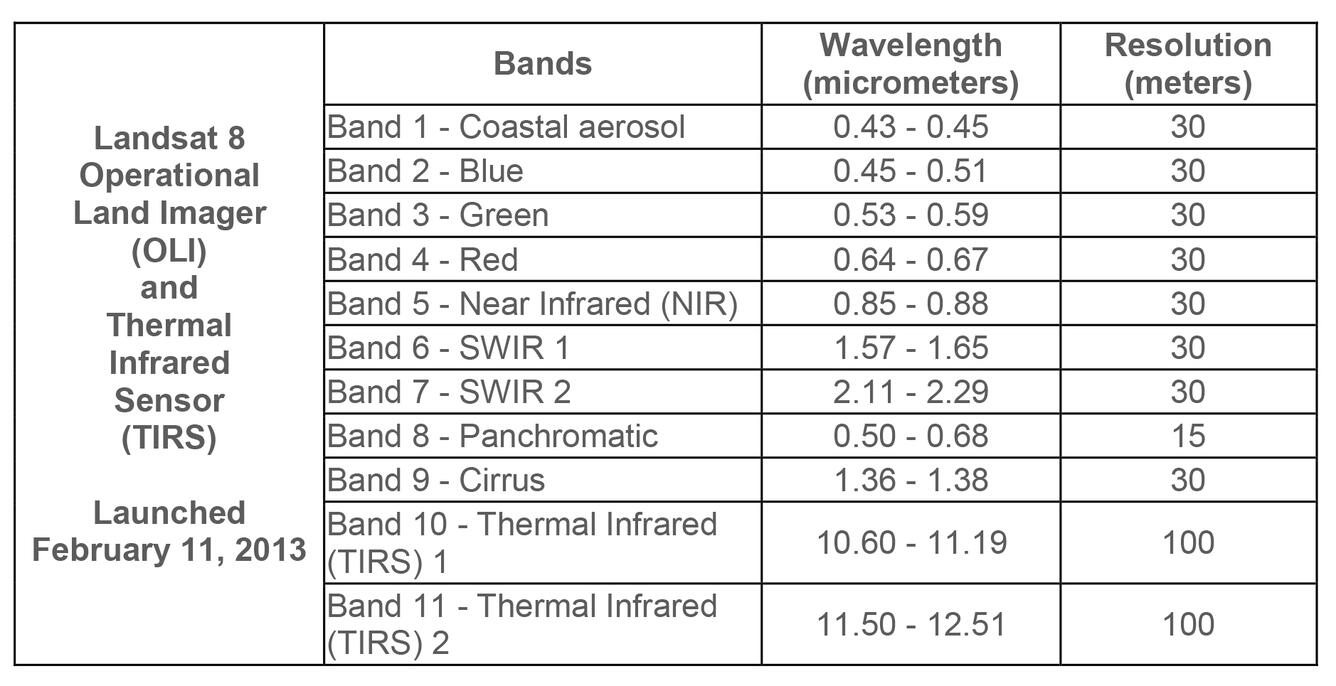
Landsat 8 spectral bands (1-11)

Catalog

What is a STAC?

Querying STAC with rstac: Palo 2016 Flood

The Palo flood occurred Sept 26, 2016. Search for Landsat imagery covering that event:

library(rstac)

# STAC endpoint: Microsoft Planetary Computer
stac_ep <- "https://planetarycomputer.microsoft.com/api/stac/v1"

# Bounding box around Palo, IA
bbox_palo <- AOI::geocode("Palo, Iowa", bbox = TRUE)
(search <- stac(stac_ep))
#> ###rstac_query
#> - url: https://planetarycomputer.microsoft.com/api/stac/v1/
#> - params:
#> - field(s): version, base_url, endpoint, params, verb, encode

Collections

(
  search <- stac(stac_ep) |> 
   stac_search(
    collections = "landsat-c2-l2",
  )|> 
    get_request()
 )
#> ###Items
#> - features (250 item(s)):
#>   - LC09_L2SP_090091_20260414_02_T2
#>   - LC09_L2SP_090090_20260414_02_T1
#>   - LC09_L2SP_090089_20260414_02_T1
#>   - LC09_L2SP_090088_20260414_02_T1
#>   - LC09_L2SP_090087_20260414_02_T1
#>   - LC09_L2SP_090086_20260414_02_T1
#>   - LC09_L2SP_090085_20260414_02_T1
#>   - LC09_L2SP_090084_20260414_02_T1
#>   - LC09_L2SP_090083_20260414_02_T1
#>   - LC09_L2SP_090082_20260414_02_T1
#>   - ... with 240 more feature(s).
#> - assets: 
#> ang, atran, blue, cdist, coastal, drad, emis, emsd, green, lwir11, mtl.json, mtl.txt, mtl.xml, nir08, qa, qa_aerosol, qa_pixel, qa_radsat, red, rendered_preview, swir16, swir22, tilejson, trad, urad
#> - item's fields: 
#> assets, bbox, collection, geometry, id, links, properties, stac_extensions, stac_version, type

Spatial Filter

(
  search <- stac(stac_ep) |> 
   stac_search(
    collections = "landsat-c2-l2",
    bbox = st_bbox(bbox_palo),
    limit = 10
  )|> 
    get_request()
 )
#> ###Items
#> - features (10 item(s)):
#>   - LC09_L2SP_025031_20260407_02_T1
#>   - LC08_L2SP_025031_20260330_02_T1
#>   - LC09_L2SP_026031_20260329_02_T1
#>   - LC09_L2SP_025031_20260322_02_T1
#>   - LC08_L2SP_026031_20260321_02_T1
#>   - LC08_L2SP_025031_20260314_02_T1
#>   - LC09_L2SP_026031_20260313_02_T1
#>   - LC09_L2SP_025031_20260306_02_T1
#>   - LC08_L2SP_026031_20260305_02_T2
#>   - LC08_L2SP_025031_20260226_02_T1
#> - assets: 
#> ang, atran, blue, cdist, coastal, drad, emis, emsd, green, lwir11, mtl.json, mtl.txt, mtl.xml, nir08, qa, qa_aerosol, qa_pixel, qa_radsat, red, rendered_preview, swir16, swir22, tilejson, trad, urad
#> - item's fields: 
#> assets, bbox, collection, geometry, id, links, properties, stac_extensions, stac_version, type

Temporal Filter

(
  search <- stac(stac_ep) |> 
   stac_search(
    collections = "landsat-c2-l2",
    bbox = st_bbox(bbox_palo),
    datetime = "2016-09-24/2016-09-29",
    limit = 10
  )|> 
    get_request()
 )
#> ###Items
#> - features (2 item(s)):
#>   - LC08_L2SP_025031_20160926_02_T1
#>   - LE07_L2SP_026031_20160925_02_T1
#> - assets: 
#> ang, atmos_opacity, atran, blue, cdist, cloud_qa, coastal, drad, emis, emsd, green, lwir, lwir11, mtl.json, mtl.txt, mtl.xml, nir08, qa, qa_aerosol, qa_pixel, qa_radsat, red, rendered_preview, swir16, swir22, tilejson, trad, urad
#> - item's fields: 
#> assets, bbox, collection, geometry, id, links, properties, stac_extensions, stac_version, type

Get Request

  • The GET request only returns the JSON catalog showing were data is located this is “free” to all.

  • To actually get the assests from the URL, some providers require a key, some an account, and some just an authentication

  • Microsoft is an example of authenticated but free to use!

search$features[[1]]$assets$green$href
#> [1] "https://landsateuwest.blob.core.windows.net/landsat-c2/level-2/standard/oli-tirs/2016/025/031/LC08_L2SP_025031_20160926_20200906_02_T1/LC08_L2SP_025031_20160926_20200906_02_T1_SR_B3.TIF"

Signed URLs & Accessing Planetary Computer Data

Microsoft Planetary Computer hosts large datasets (Landsat, Sentinel, Copernicus, MODIS, etc.) and requires signed URLs for access. The rstac package handles this automatically:

# Sign all asset URLs for the first item
item_signed <- search  |> 
  items_sign(rstac::sign_planetary_computer())

item_signed$features[[1]]$assets$green$href # Now this URL is signed and ready for download
#> [1] "https://landsateuwest.blob.core.windows.net/landsat-c2/level-2/standard/oli-tirs/2016/025/031/LC08_L2SP_025031_20160926_20200906_02_T1/LC08_L2SP_025031_20160926_20200906_02_T1_SR_B3.TIF?st=2026-04-14T21%3A20%3A17Z&se=2026-04-15T22%3A05%3A17Z&sp=rl&sv=2025-07-05&sr=c&skoid=9c8ff44a-6a2c-4dfb-b298-1c9212f64d9a&sktid=72f988bf-86f1-41af-91ab-2d7cd011db47&skt=2026-04-15T00%3A02%3A34Z&ske=2026-04-22T00%3A02%3A34Z&sks=b&skv=2025-07-05&sig=%2BOTGhGiKwIXrnO6kU4uaGmg5z1A9XFdY001GaFccOYs%3D"

This avoids keeping credentials in your code—much more secure!

Safe Download: Check File Size First

Before downloading large band files (100s of MB), inspect the file size with a HEAD request:

# Example: safe download pattern
file_url <- item_signed[[1]]$assets$green$href

# HEAD request: get metadata without downloading
h <- httr::HEAD(file_url)
if (httr::status_code(h) == 200) {
  file_size_mb <- as.numeric(httr::headers(h)$`content-length`) / 1e6
  cat("File size:", file_size_mb, "MB\n")
  
  # Only download if < 500 MB
  if (file_size_mb < 500) {
    httr::GET(file_url, httr::write_disk("band_red.TIF", overwrite = TRUE))
    cat("Downloaded successfully\n")
  } else {
    cat("File too large; consider downloading selectively\n")
  }
}

Direct read

vsi <- terra::rast(item_signed$features[[1]]$assets$green$href)
vsi
#> class       : SpatRaster 
#> size        : 7801, 7681, 1  (nrow, ncol, nlyr)
#> resolution  : 30, 30  (x, y)
#> extent      : 518085, 748515, 4506885, 4740915  (xmin, xmax, ymin, ymax)
#> coord. ref. : WGS 84 / UTM zone 15N (EPSG:32615) 
#> source      : LC08_L2SP_025031_20160926_20200906_02_T1_SR_B3.TIF 
#> name        : LC08_L2SP_025031_20160926_20200906_02_T1_SR_B3

Assisted Asset Download

assets_download(
  items      = item_signed,
  asset_names =  c('blue', 'green', 'red'),
  output_dir = '../labs/data',
  overwrite  = FALSE
)
list.files( path = "../labs/data",
  pattern = "\\.TIF$",
  recursive = TRUE, 
  full.names = TRUE)
#> [1] "../labs/data/landsat-c2/level-2/standard/oli-tirs/2016/025/031/LC08_L2SP_025031_20160926_20200906_02_T1/LC08_L2SP_025031_20160926_20200906_02_T1_SR_B1.TIF"
#> [2] "../labs/data/landsat-c2/level-2/standard/oli-tirs/2016/025/031/LC08_L2SP_025031_20160926_20200906_02_T1/LC08_L2SP_025031_20160926_20200906_02_T1_SR_B2.TIF"
#> [3] "../labs/data/landsat-c2/level-2/standard/oli-tirs/2016/025/031/LC08_L2SP_025031_20160926_20200906_02_T1/LC08_L2SP_025031_20160926_20200906_02_T1_SR_B3.TIF"
#> [4] "../labs/data/landsat-c2/level-2/standard/oli-tirs/2016/025/031/LC08_L2SP_025031_20160926_20200906_02_T1/LC08_L2SP_025031_20160926_20200906_02_T1_SR_B4.TIF"
#> [5] "../labs/data/landsat-c2/level-2/standard/oli-tirs/2016/025/031/LC08_L2SP_025031_20160926_20200906_02_T1/LC08_L2SP_025031_20160926_20200906_02_T1_SR_B5.TIF"
#> [6] "../labs/data/landsat-c2/level-2/standard/oli-tirs/2016/025/031/LC08_L2SP_025031_20160926_20200906_02_T1/LC08_L2SP_025031_20160926_20200906_02_T1_SR_B6.TIF"

From STAC to Analysis: The Full Workflow

Query STAC        Inspect         Sign URLs        Download         Load & Analyze
Find scenes  →  Metadata/CC  →  Authenticate  →  Selectively  →  NDVI, floods, etc.
     ↓              ↓              ↓              ↓              ↓
 bbox, date     cloud cover   secured tokens   30m TIFFs        terra raster
 collection     available         valid          to disk         ensemble
               bands            ~15 min         only needed      mapping

Lab 4 & this walkthrough execute all five steps for Palo 2016 flood.

  1. Query STAC → find scenes matching criteria (date, location, cloud cover)
  2. Inspect metadata → confirm cloud cover, available bands, data quality
  3. Sign URLs → authenticate access to cloud-hosted files
  4. Download selectively → you often need only 1–2 bands, not entire scenes
  5. Load into terra → treat as raster for analysis (NDVI, flood mapping, etc.)

Why This Matters for Water Science

Pre-STAC workflow (still common):

  • Click directories on EarthExplorer

  • Download entire scenes (10+ GB each)

  • Manual metadata tracking

  • Months to assemble regional datasets

With STAC + rstac:

  • Query programmatically in seconds

  • Download only what you need (individual bands, 50–100 MB)

  • Metadata is structured, version-controlled

  • Automated multi-year, multi-sensor analyses feasible

Real-World STAC Catalogs for Water

  • Microsoft Planetary Computer: 50+ datasets (Landsat, Sentinel-1/2, MODIS, ASTER, Climate models)
  • AWS Registry of Open Data: Open-access Landsat, Sentinel, NOAA, others
  • Google Earth Engine: Similar concept (not STAC-native, but queryable)
  • USGS OpenData: Some products via STAC
  • CBERS/INPE (Brazil): Open satellite data via STAC

All queryable programmatically from R with rstac.

Key Takeaways

  1. JSON is the lingua franca of modern APIs—parsing it in R is essential
  2. GeoJSON enables you to encode, share, and analyze spatial data portably
  3. STAC unlocks programmatic access to massive remote sensing archives without manual downloads
  4. Together, these unlock automated multi-year, multi-region analyses
  5. For water science: combine satellite data with ground-truth (gauges, models) to answer critical operational questions

Complete Walkthrough:

Palo 2016 Flood Analysis

Step 1: Define AOI and Temporal Window

library(rstac)
library(terra)
library(sf)
library(tidyverse)

# AOI: Palo, Iowa
palo <- AOI::geocode("Palo, Iowa", bbox = TRUE)

# Flood occurred Sept 26, 2016; search Sept 24–29 for cloud-free imagery
temporal_range <- "2016-09-24/2016-09-29"

mapview::mapview(palo)

Complete Walkthrough: STAC Query (with signing)

# Connect to Microsoft Planetary Computer
stac_query <- stac("https://planetarycomputer.microsoft.com/api/stac/v1") %>%
  stac_search(
    collections = "landsat-c2-l2",
    datetime    = temporal_range,
    bbox        = st_bbox(palo),
    limit       = 1
  ) %>%
  get_request() %>%
  items_sign(sign_planetary_computer())

stac_query
#> ###Items
#> - features (1 item(s)):
#>   - LC08_L2SP_025031_20160926_02_T1
#> - assets: 
#> ang, atran, blue, cdist, coastal, drad, emis, emsd, green, lwir11, mtl.json, mtl.txt, mtl.xml, nir08, qa, qa_aerosol, qa_pixel, qa_radsat, red, rendered_preview, swir16, swir22, tilejson, trad, urad
#> - item's fields: 
#> assets, bbox, collection, geometry, id, links, properties, stac_extensions, stac_version, type
# Inspect the result
cat("Item ID:", stac_query$features[[1]]$id, "\n")
#> Item ID: LC08_L2SP_025031_20160926_02_T1

cat("Date:", stac_query$features[[1]]$properties$datetime, "\n")
#> Date: 2016-09-26T16:47:41.390781Z

cat("Cloud cover:", stac_query$features[[1]]$properties$`eo:cloud_cover`, "%\n")
#> Cloud cover: 0.01 %
assets_download(
  items      = stac_query,
  asset_names = c('coastal', 'blue', 'green', 'red', 'nir08', 'swir16'),
  output_dir = '../labs/data',
  overwrite  = FALSE
)

Complete Walkthrough: Load Pre-Downloaded Data

Since data is already in labs/data, load directly from the local directory:

# List downloaded Landsat band files (TIF format)
raster_files <- list.files(
  path = "../labs/data",
  pattern = "*.TIF$",
  full.names = TRUE,
  recursive = TRUE
)

# Sort to ensure consistent band order
raster_files <- sort(raster_files)[1:6]

# Stack into a single SpatRaster object
landsat_stack <- rast(raster_files)
band_names <- c('coastal', 'blue', 'green', 'red', 'nir08', 'swir16')
landsat_stack <- setNames(landsat_stack, band_names)

landsat_stack
#> class       : SpatRaster 
#> size        : 7801, 7681, 6  (nrow, ncol, nlyr)
#> resolution  : 30, 30  (x, y)
#> extent      : 518085, 748515, 4506885, 4740915  (xmin, xmax, ymin, ymax)
#> coord. ref. : WGS 84 / UTM zone 15N (EPSG:32615) 
#> sources     : LC08_L2SP_025031_20160926_20200906_02_T1_SR_B1.TIF  
#>               LC08_L2SP_025031_20160926_20200906_02_T1_SR_B2.TIF  
#>               LC08_L2SP_025031_20160926_20200906_02_T1_SR_B3.TIF  
#>               ... and 3 more sources
#> names       : coastal, blue, green, red, nir08, swir16

Complete Walkthrough: Crop to AOI

# Transform AOI to match raster CRS (UTM zone 15N)
palo_utm <- bbox_palo %>% 
  st_transform(crs(landsat_stack))

# Crop the full scene to study area (saves memory, speeds processing)
landsat_crop <- crop(landsat_stack, palo_utm)

cat("\nCropped extent:\n")
#> 
#> Cropped extent:
print(ext(landsat_crop))
#> SpatExtent : 598185, 601065, 4655805, 4659615 (xmin, xmax, ymin, ymax)
cat("Cropped dimensions:", dim(landsat_crop), "\n")
#> Cropped dimensions: 127 96 6

Complete Walkthrough: Visualize Band Combinations

Natural Color (RGB) — What the Human Eye Would See
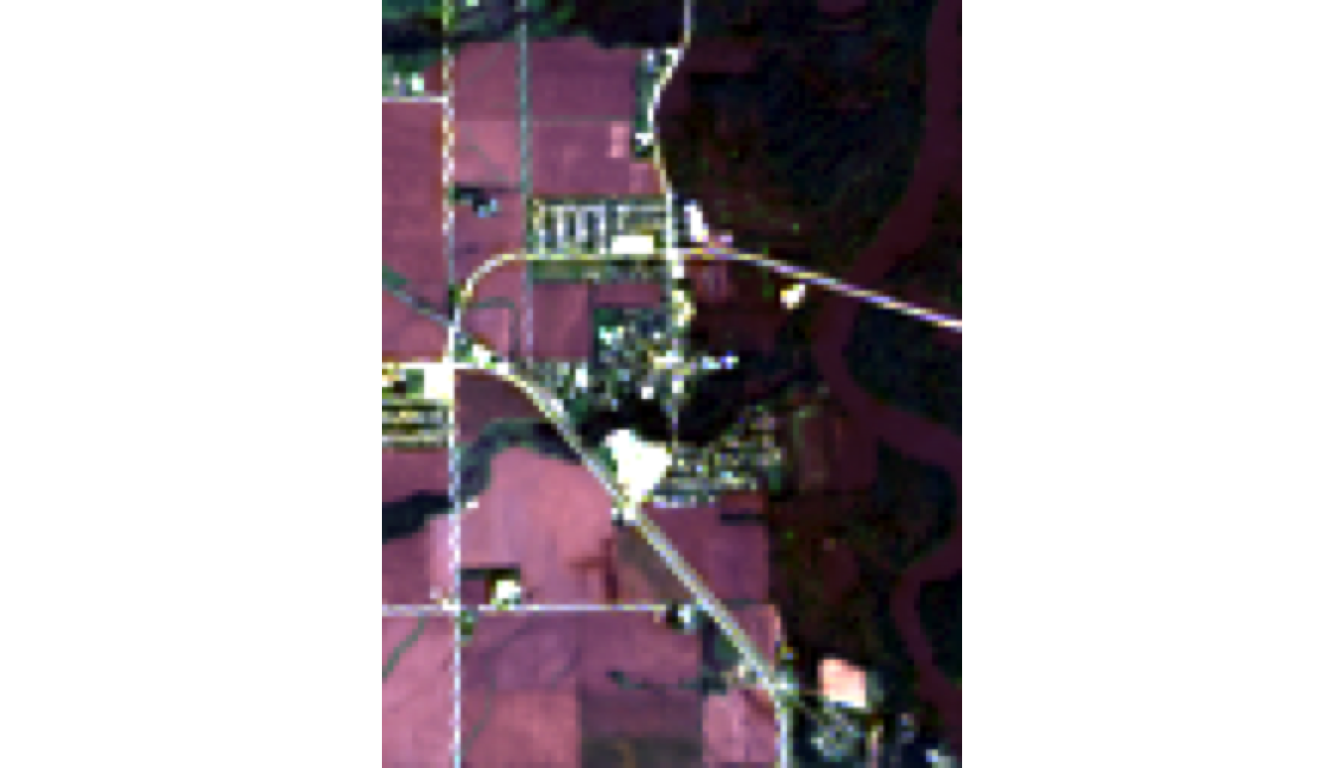
plotRGB(landsat_crop, r = 4, g = 3, b = 2, stretch = "lin", 
        main = "Natural Color: Red-Green-Blue")

Visible: Water (dark), vegetation (green), urban (gray/tan), clouds (white)

Limitation: Flooding can look similar to vegetation in RGB alone.

Visualize: Color Infrared (Vegetation)
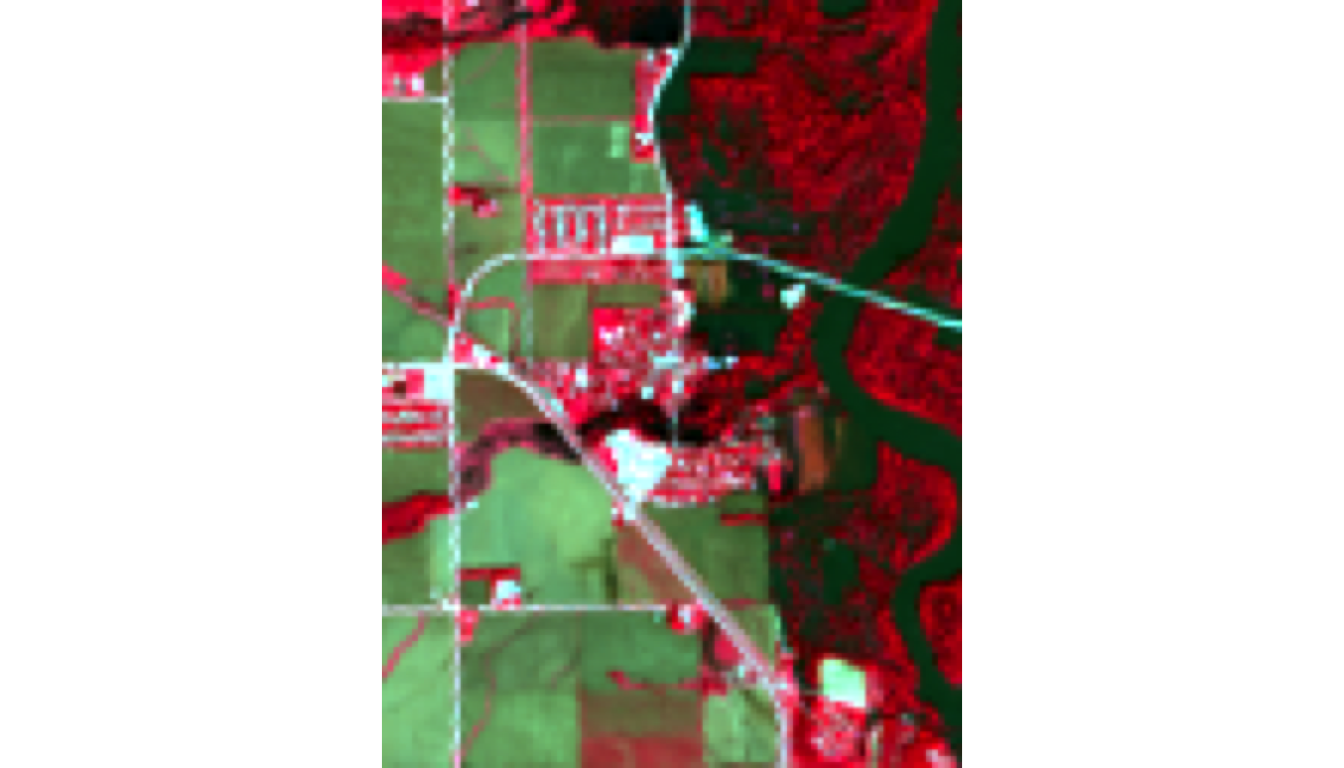
plotRGB(landsat_crop, r = 5, g = 4, b = 3, stretch = "lin",
        main = "Color Infrared: NIR-Red-Green\n(Bright red = healthy vegetation)")

Visible: - Bright red/magenta = healthy vegetation (strong NIR reflectance) - Dark blue/black = water - Gray/tan = soil/urban

Why NIR matters: Vegetation reflects ~50% of NIR light; water absorbs it. This makes forests “glow” red.

Visualize: Water-Focused False Color

plotRGB(landsat_crop, r = 5, g = 6, b = 4, stretch = "lin",
        main = "Water Focus: NIR-SWIR1-Red\n(Dark blue = open water/flooding)")
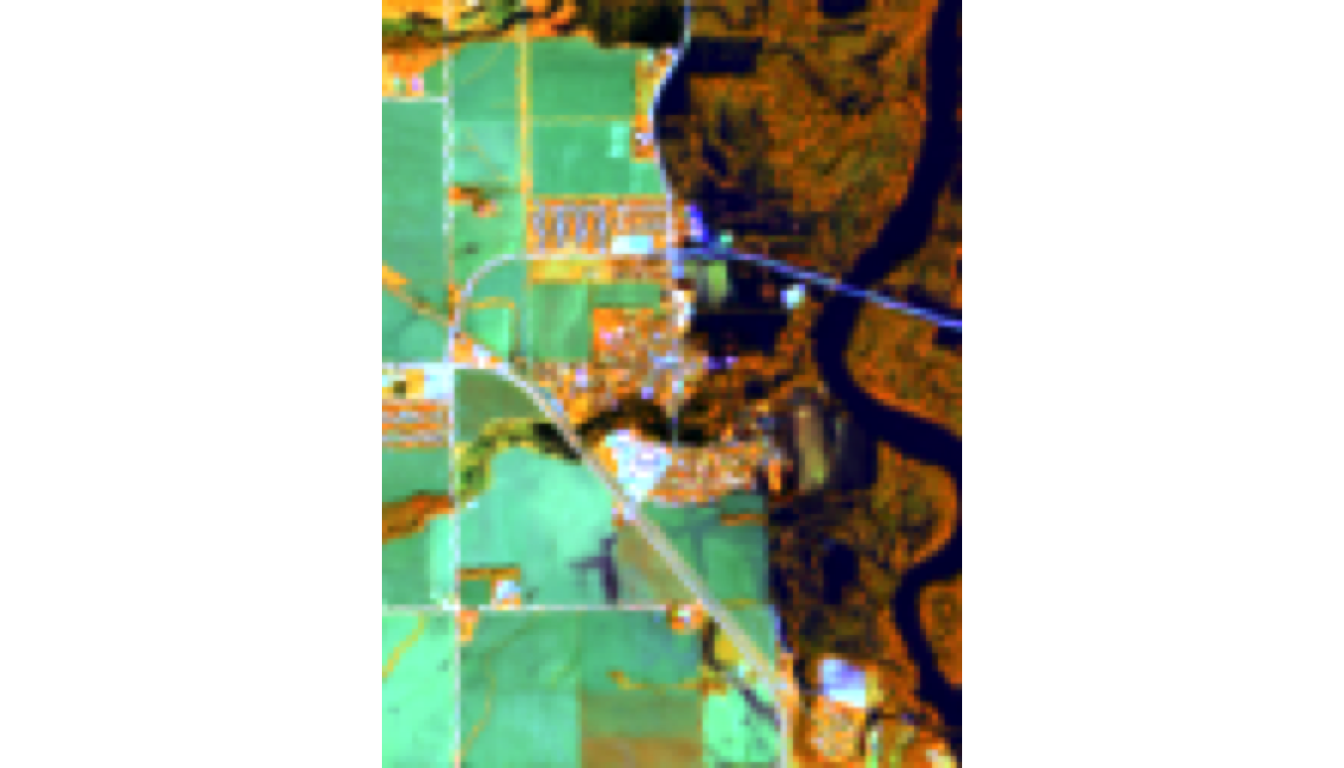
Visible: - Dark blue/black = open water, flooded areas (absorbs NIR + SWIR) - Bright colors = vegetation & land - Often shows flooding more clearly than natural color

Why SWIR1 matters: Water absorbs SWIR; vegetation reflects it. This combo best delineates water boundaries.

SWIR false color showing water features distinctly

Complete Walkthrough: NDVI

$ NDVI = $
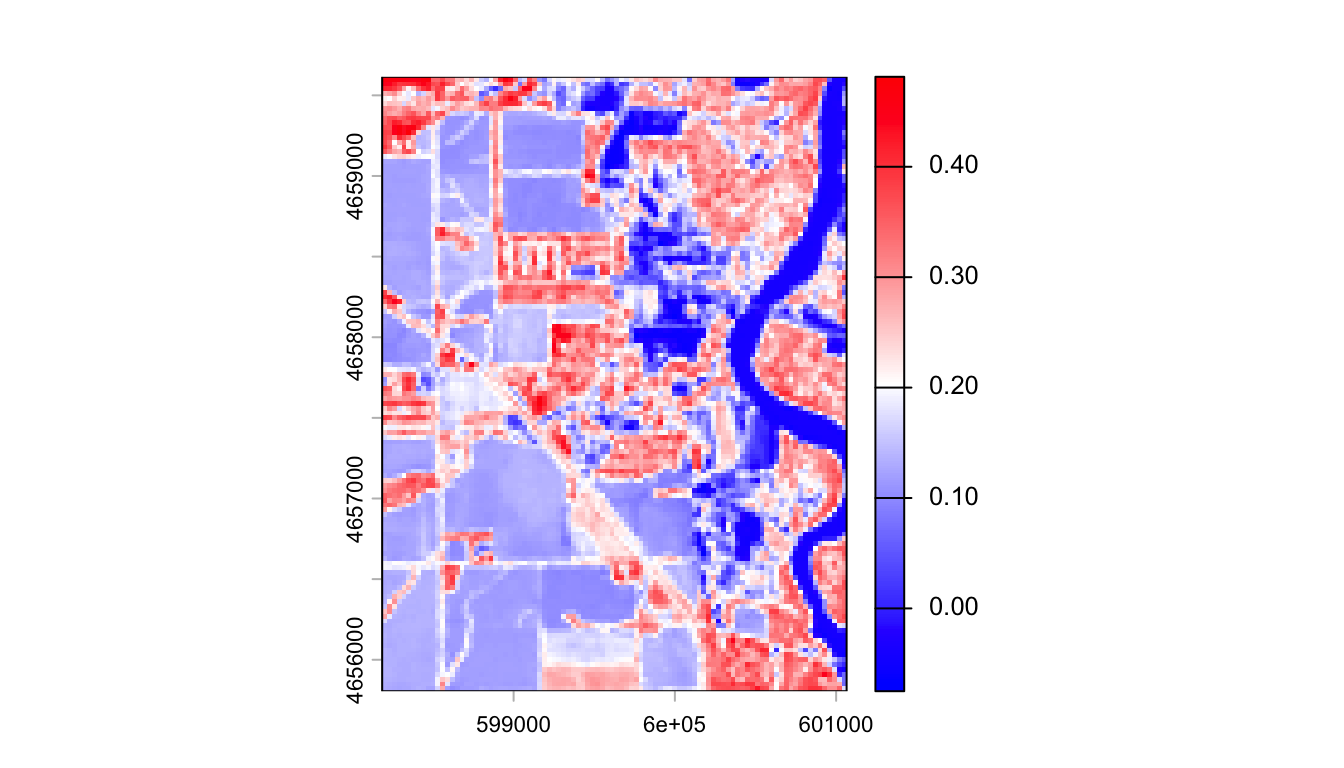
# Extract individual bands for calculations
# Calculate key water indices
ndvi  <- (landsat_crop$nir08 - landsat_crop$red) / (landsat_crop$nir08 + landsat_crop$red)

plot(ndvi, col = colorRampPalette(c("blue", "white", "red"))(256))

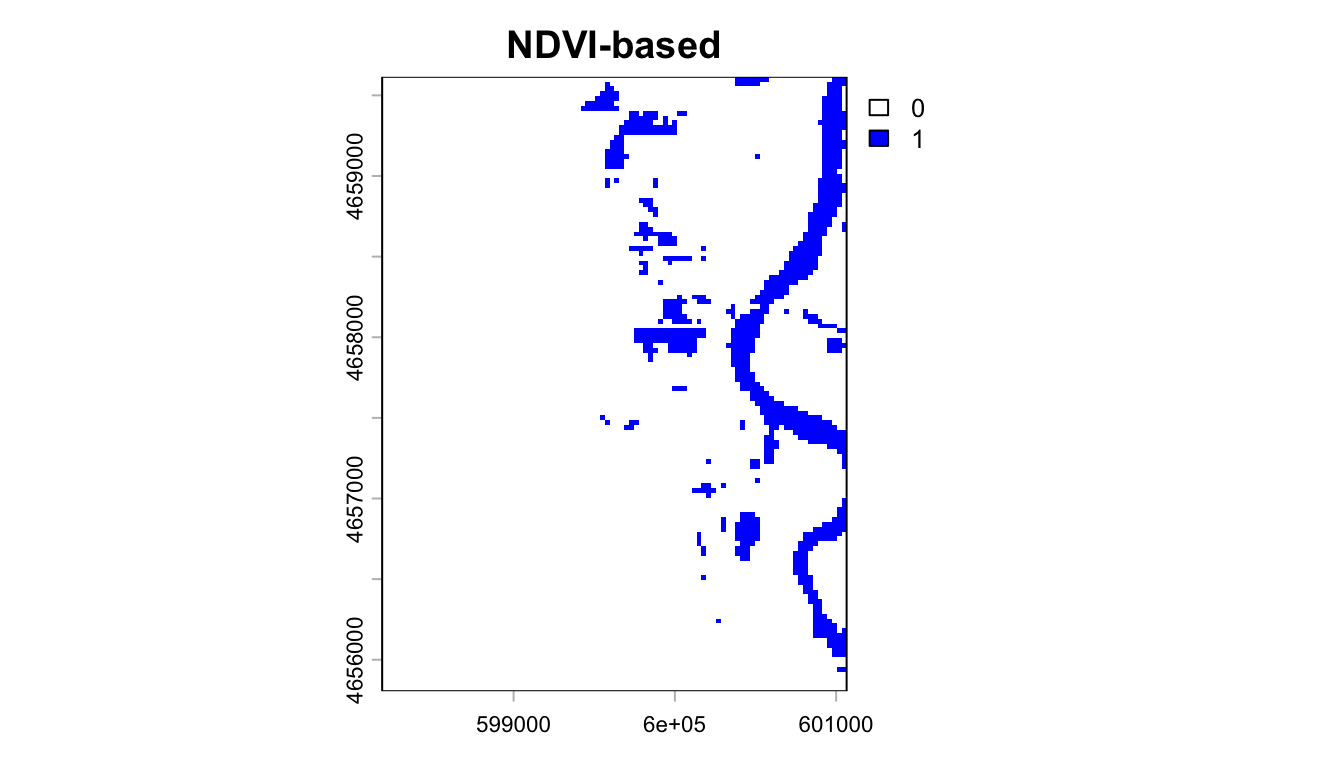
Thresholding to Binary Flood Maps

NDVI < 0 typically indicates water. We can apply this threshold to create a binary flood map:
# Apply thresholds specific to each index
ndvi_flood  <- app(ndvi,  function(x) ifelse(x < 0, 1, 0))      # NDVI < 0 = water

# Plot: blue = flooded, white = non-flooded
plot(ndvi_flood, col = c("white", "blue"), 
     main = c("NDVI-based"))

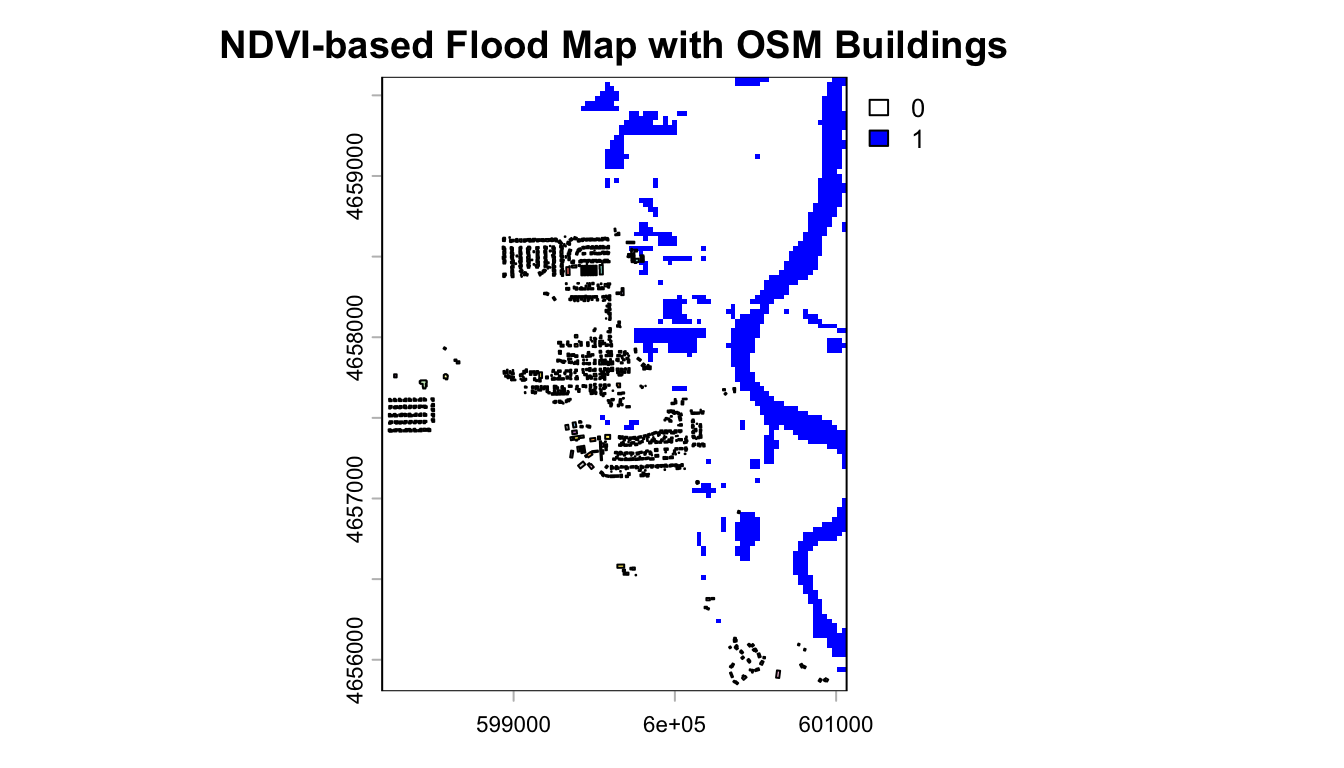
Imapct Assessment:

library(osmdata)
osm <-  osmdata::opq(st_bbox(st_transform(palo, 4326))) |> 
    add_osm_feature("building") |> 
    osmdata_sf() 

buildings = st_transform(osm$osm_polygons, crs(landsat_crop))
{plot(ndvi_flood, col = c("white", "blue"), 
     main = c("NDVI-based Flood Map with OSM Buildings"))
plot(buildings, add = TRUE)}

Extract maximum NDVI flood value for each building:

buildings$impact = terra::extract(ndvi_flood, buildings, fun = max, na.rm = TRUE)[,2] > 0

carto = app(ndvi,  function(x) ifelse(x < 0, 1, NA))
mapview::mapview(carto) + filter(buildings, impact)

Key Insights from the Walkthrough

  1. STAC query identified the exact cloud-free Landsat 8 scene (Sept 26, 2016)
  2. Local files (pre-downloaded in labs/data) eliminated long download wait
  3. Band stacking combined 6 spectral bands into a single raster object
  4. Color composites revealed features invisible in natural color (vegetation, water)
  5. Indices + thresholding converted continuous values to binary flood/no-flood
  6. Ensemble mapping quantified confidence by counting method agreement

Result: A rigorous, reproducible flood map derived from open satellite data, validated against known drone footage.

Further Reading & Resources

  • JSON Spec: https://www.json.org/
  • GeoJSON RFC 7946: https://tools.ietf.org/html/rfc7946
  • STAC Specification: https://stacspec.org/
  • Planetary Computer STAC API: https://planetarycomputer.microsoft.com/api/stac/v1
  • rstac Package: https://cran.r-project.org/package=rstac